
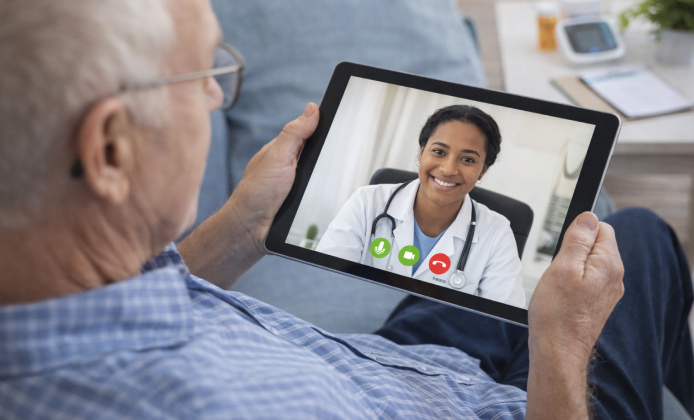
Remote appointments can feel surprisingly personal when your device is prepared, your connection is stable, and your environment is calm. For many patients, Telehealth on iPad becomes the easiest way to meet a clinician from the couch without sacrificing screen size.
Why a Tablet Can Improve the Visit Experience
Tablets sit in a sweet spot between portability and readability, which matters when you need to review instructions, show a skin concern, or read after-visit notes. Compared with a small phone display, a Telehealth tablet offers more room for charts, consent forms, and clearer video framing.
- More comfortable_toggle: prop the device at eye level to reduce neck strain.
- Better shared viewing: a family member can help you follow instructions if you want them present.
- Clearer details: larger text and more space for forms can reduce mistakes.
Choosing the Right App and Checking Essentials
Not every platform is identical, so it helps to look for features that match your needs: secure video, message threads, visit summaries, and easy file sharing. When you choose a Telehealth app on iPad, check that it supports secure messaging, camera switching, and document upload in one workflow.
A quick test call with a friend can reveal camera angles, lighting issues, and audio echo before your real appointment.
Quick Setup Checklist for a Smooth Appointment
- Update your device software and the app before the day of the visit.
- Charge your battery or plug into power, especially for longer consultations.
- Use a quiet room and place the tablet on a stable surface with the camera at eye level.
- Test Wi-Fi strength; if it’s weak, move closer to the router or use a faster network.
- Allow camera and microphone permissions, then verify they work in the app’s settings.
Using the Visit Time Effectively
Write a short list of symptoms, medications, and questions to keep the conversation focused. In family households, iPad Telehealth helps caregivers join visits, share notes, and manage follow-ups for kids or older relatives.
What to Have Ready Nearby
- Insurance information, if your provider requests it
- Medication list (including supplements) and known allergies
- Recent measurements (temperature, blood pressure, blood sugar), if applicable
- Photos of symptoms taken in good light, if you plan to share them
Downloading and Sign-in Tips
Many clinics and insurers provide a dedicated platform, while others send a visit link by email or text. Before your first appointment, you can download Telehealth for iPad from the App Store and confirm it appears in your Home Screen library.
| Task | What to check | Quick fix |
|---|---|---|
| Login | Correct email/phone and verification method | Use password manager or reset link in advance |
| Camera | Front camera selection and focus | Clean lens and tap screen to refocus |
| Audio | Microphone permission and output device | Toggle permissions and try wired earbuds |
| Connection | Wi-Fi stability and speed | Move closer to router or use a different network |
iPad Pro Specifics and Larger-Screen Best Practices
Bigger screens can feel more natural during conversations, and they make it easier to review documents while you talk. If you rely on a larger display, it’s simple to install Telehealth on iPad Pro after updating iPadOS and signing in with your provider’s portal credentials.
Comfort and Ergonomics for Longer Calls
- Use a stand or keyboard case to keep the camera steady.
- Position the tablet so your face is centered; avoid placing it too low on a lap.
- Keep a soft, front-facing light source to avoid harsh shadows.
Privacy and Security Habits That Actually Help
Remote care is still healthcare, so your privacy choices matter. Use a private room when possible, wear headphones if others are nearby, and avoid public Wi-Fi for sensitive visits. If you must travel, consider using a trusted hotspot and log out after the appointment.
- Enable device passcode or biometric unlock.
- Keep automatic updates on for your operating system and apps.
- Review app permissions and disable anything you don’t need.
- Store visit summaries in a secure location if you export them.
Troubleshooting Common Issues in Minutes
If video freezes or sound drops, don’t panic, most fixes are simple and fast:
- Close other apps that might be using the camera, microphone, or bandwidth.
- Switch between Wi-Fi and cellular data if you have the option.
- Reconnect: leave the call and rejoin using the same appointment link.
- Restart the tablet if permissions or audio routing gets stuck.
Making the Most of Follow-Ups and Care Plans
After your visit, review the plan while it’s fresh: medications, referrals, tests, and the timing of the next check-in. Add reminders for lab work, schedule recommended screenings, and keep a short symptom log so future appointments stay efficient and accurate. With a small amount of preparation, remote care can feel organized, calm, and highly practical, especially when your device is set up for clear audio, stable video, and easy note-taking.

 Telehealth App on PC: Manage Appointments, Lab Results, and Follow-Ups Easily
 Telehealth for Free: Video Visits, Prescriptions, and Secure Messaging
 Telehealth on iPad: Clear Video Calls and Better Record Access
 Install Telehealth Guide: Set Up Secure Virtual Care on PC
 What Is Telehealth and How to Use?
 Best Apps Similar to Telehealth