
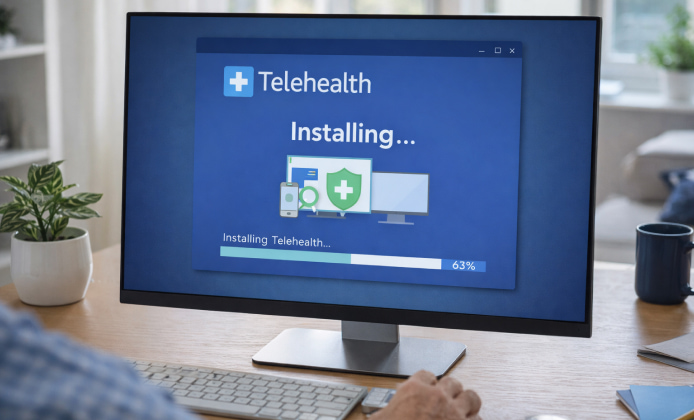
Telehealth has made it easier to connect with clinicians, therapists, and care teams without leaving home, but a smooth setup matters for privacy and call quality. This guide walks you through choosing the right device, preparing your system, and completing a reliable first appointment.
Before You Start: Quick Preparation Checklist
- Use a stable internet connection (Wi-Fi is fine, but wired Ethernet is best for video).
- Have headphones available to reduce echo and improve clarity.
- Update your operating system and browser to the latest version available for your device.
- Make sure you can access your email or phone number for verification codes.
Tip: A quiet room, a charged device, and good lighting do more for appointment quality than any advanced settings.
Step-by-Step: Getting the App Installed
For most people, the fastest approach is to use the official store or a trusted provider link shared by your clinic. If you have a direct setup link from your healthcare organization, open it on the same device you plan to use for calls so permissions and camera settings match correctly.
Many users prefer to install Telehealth app from a verified source to avoid look-alike downloads and confusing popups.
Choose the Right Installation Method
- Mobile (iOS/Android): Install from the official app store, then sign in with your verified account.
- Desktop (Windows/macOS): Use the official website or your clinic’s patient portal link, then follow on-screen prompts.
- Web option: Some providers offer browser-based visits; this can be helpful if you can’t install software.
Confirm Identity and Permissions
During Telehealth install, allow camera and microphone access only when prompted by the operating system or the app itself. If a permission prompt appears unexpectedly, cancel it and restart from the official download page to ensure you are using the correct installer.
Complete the Download and Run the Installer
When you download and install Telehealth, keep the file in your default Downloads folder so it’s easy to locate and verify.
Understanding the Installer and What to Expect
On desktop systems, an installer typically guides you through a few screens: license terms, install location, and a final confirmation. Avoid changing advanced options unless you know why you need them (for example, a clinic IT team asked you to install in a specific directory).
If your provider supplies a dedicated Telehealth installer, verify the publisher name in the file properties before launching it.
Recommended Security Checks (Fast and Practical)
- Confirm the download came from your clinic portal, an official store, or a trusted link.
- Check the file name and publisher details match what your provider describes.
- Do not proceed if your antivirus flags the file; instead, contact support.
Windows Setup Notes
On a PC, the easiest route is often guided by a patient portal, especially when the visit requires specific plugins or single sign-on. After installation, restart your browser if prompted and test audio/video once before your appointment.
Many people choose to install Telehealth on Windows using an administrator account to prevent permission errors and missing camera access.
Troubleshooting: Fix Common Installation Problems
- Try a different browser and disable any download-blocking extensions temporarily.
- Check you have enough storage space (video apps may require extra room for updates).
- Switch from mobile data to Wi-Fi if the connection is unstable.
Problem: The installer won’t open
- Right-click the file and choose “Run as administrator” (Windows) if appropriate.
- Re-download from the official link and compare file size if it looks incomplete.
- Make sure your OS meets the minimum requirements for video calls.
Problem: Camera or microphone not detected
- Open system settings and confirm the app is allowed to access camera/mic.
- Close other apps that might be using the camera (video chat, browser tabs, streaming tools).
- Unplug and reconnect external webcams or headsets, then retry the test screen.
Compatibility and Requirements at a Glance
| Area | Recommended | Why it Helps |
|---|---|---|
| Internet | Stable Wi-Fi or Ethernet | Reduces freezes and audio drops |
| Audio | Headphones + mic | Improves privacy and clarity |
| Video | 720p camera or better | Makes visual assessments easier |
| Updates | Latest OS + app version | Fixes bugs and security issues |
Getting Started After Installation
Once installed, sign in and complete any short onboarding steps, such as verifying your phone number, accepting consent forms, or selecting notification preferences. If your clinic schedules visits through a portal, keep that portal bookmarked so you can quickly find your appointment link.
To confirm everything works, try a test call screen if the app provides one, and do a quick mic check by speaking at a normal volume. You can also practice joining a meeting early so you know where the camera and speaker controls are located.
Downloads, Updates, and Reinstalls
When Telehealth download and install is done, enable automatic updates if available so you receive security patches without extra steps. If you switch devices or reinstall after an error, back up any needed login info and keep your verification method available (email or SMS) so you can sign back in quickly.
Cost and Access Considerations
If your provider offers a sponsored option, you may be able to install Telehealth for free through their official portal without additional charges from the clinic for the software itself.
Final Quick Check Before Your First Visit
- Charge your device or plug it in 15 minutes before the appointment.
- Close downloads and streaming apps that may compete for bandwidth.
- Keep a backup plan ready (phone call or alternate device) in case video fails.
If you run into repeated errors, take a screenshot of the message and share it with your clinic’s support team so they can diagnose the issue faster.


 Telehealth App on PC: Manage Appointments, Lab Results, and Follow-Ups Easily
 Telehealth for Free: Video Visits, Prescriptions, and Secure Messaging
 Telehealth on iPad: Clear Video Calls and Better Record Access
 Install Telehealth Guide: Set Up Secure Virtual Care on PC
 What Is Telehealth and How to Use?
 Best Apps Similar to Telehealth